Goal : Install Kubernetes Dashboard (Ubuntu) and Access it externally to control your Magic xpi IMM
1/ Install and deploy the last version of the Dashboard
microk8s kubectl apply -f https://raw.githubusercontent.com/kubernetes/dashboard/v2.7.0/aio/deploy/recommended.yaml

2/ Check that the pods are running
microk8s kubectl get pods -n kubernetes-dashboard

3/ Create a user and a role to access the dashboard
Create the file dashboard-admin.yaml : sudo vi dashboard-admin.yaml
4/ Copy/paste in the file
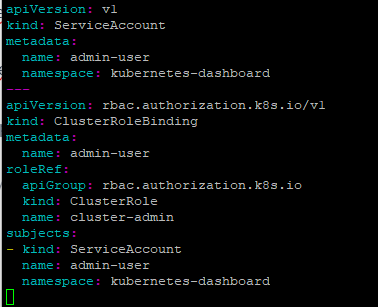
apiVersion: v1
kind: ServiceAccount
metadata:
  name: admin-user
  namespace: kubernetes-dashboard
---
apiVersion: rbac.authorization.k8s.io/v1
kind: ClusterRoleBinding
metadata:
  name: admin-user
roleRef:
  apiGroup: rbac.authorization.k8s.io
  kind: ClusterRole
  name: cluster-admin
subjects:
- kind: ServiceAccount
  name: admin-user
  namespace: kubernetes-dashboard
5/ Apply the configuration
microk8s kubectl apply -f dashboard-admin.yaml

6/ Expose the Dashboard using a NodePort service
kubectl patch svc kubernetes-dashboard -n kubernetes-dashboard -p '{"spec": {"type": "NodePort"}}' service/kubernetes-dashboard patched
7/ Grab the External Port (TYPE NodePort)
microk8s kubectl get svc -n kubernetes-dashboard

8/ Generate the dashboard Token Access
microk8s kubectl -n kubernetes-dashboard create token admin-user

9/ Access your Kubernetes DashBoard from your browser (Screen Captures from IMM HyperV)
using : https://<Kubernetes Node IP>:<nodePort from Step 7>
To retrieve the Kubernetes Node IP, enter :
microk8s kubectl get nodes -o wide


Choose Token (copy and paste the access token from Step 8)
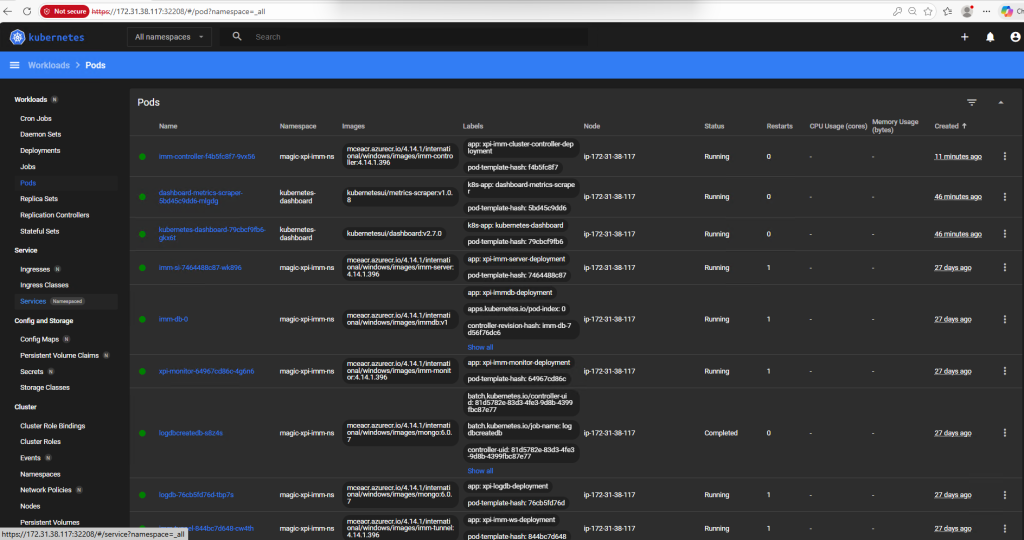
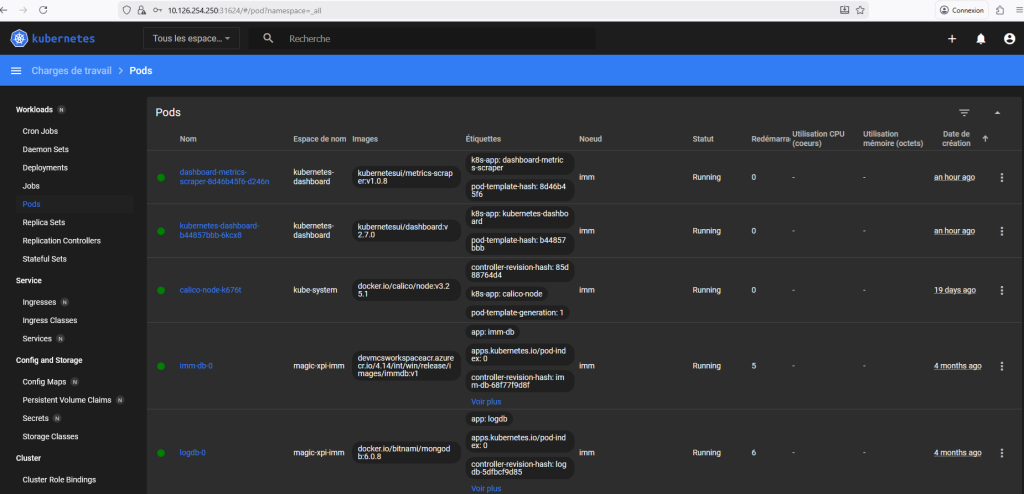
Choose All NameSpaces and for example Click on Workloads => Pods, you should see all your deployed pods
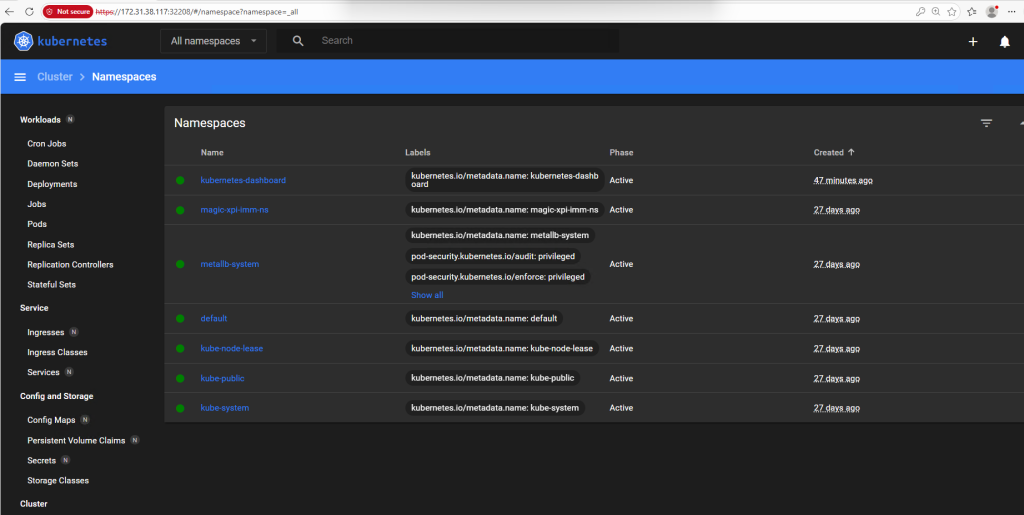
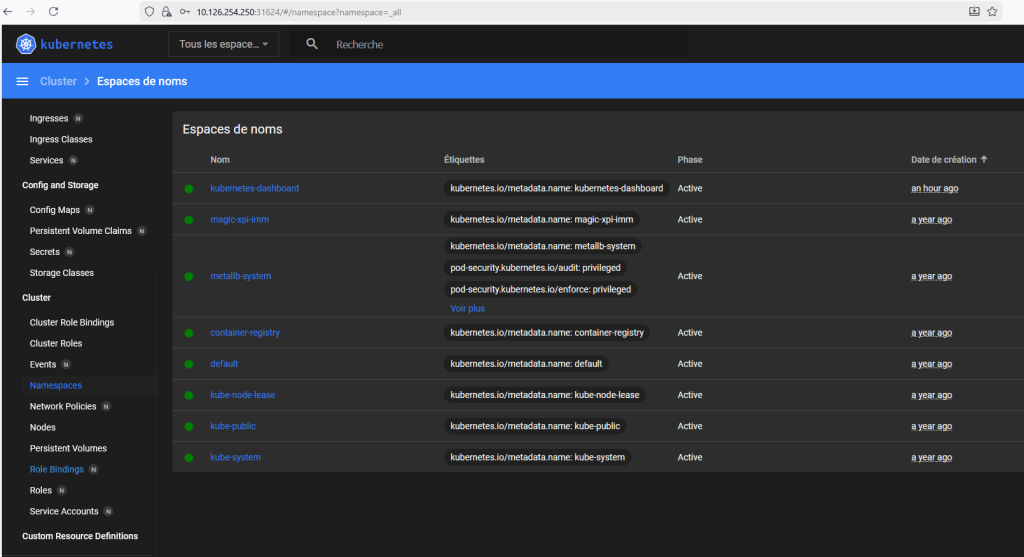
If you click on Cluster=>Namespaces, you should see your namespaces
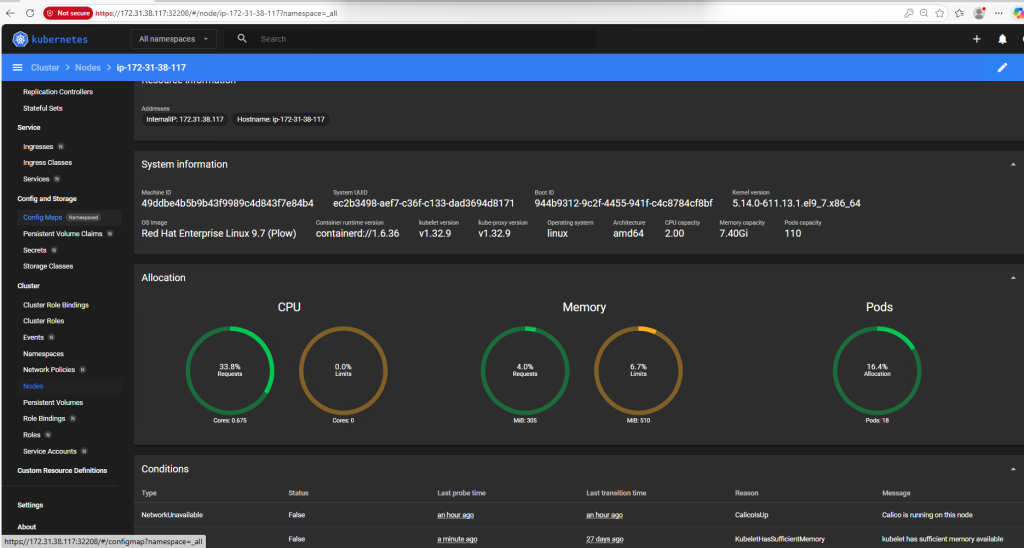
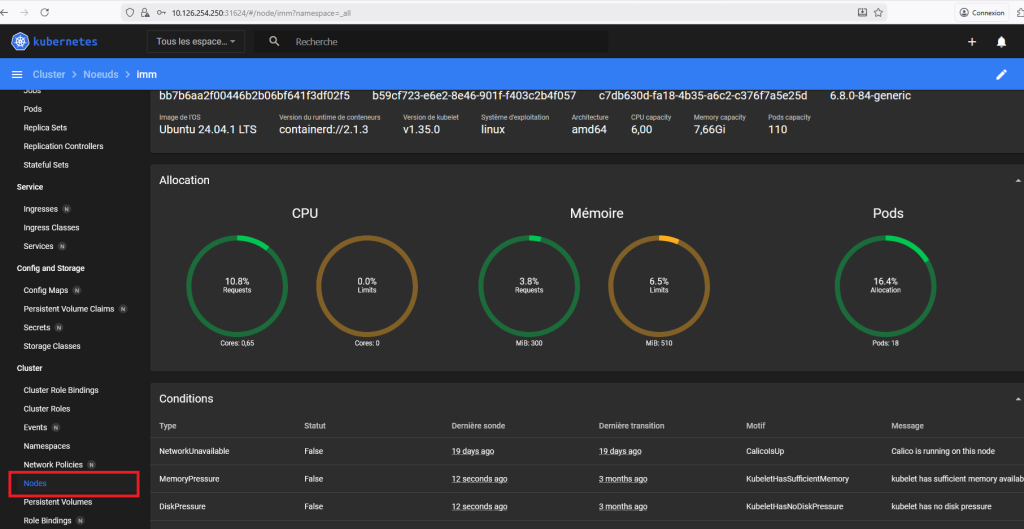
If you click on Nodes, scroll down then you should see the resources allocation
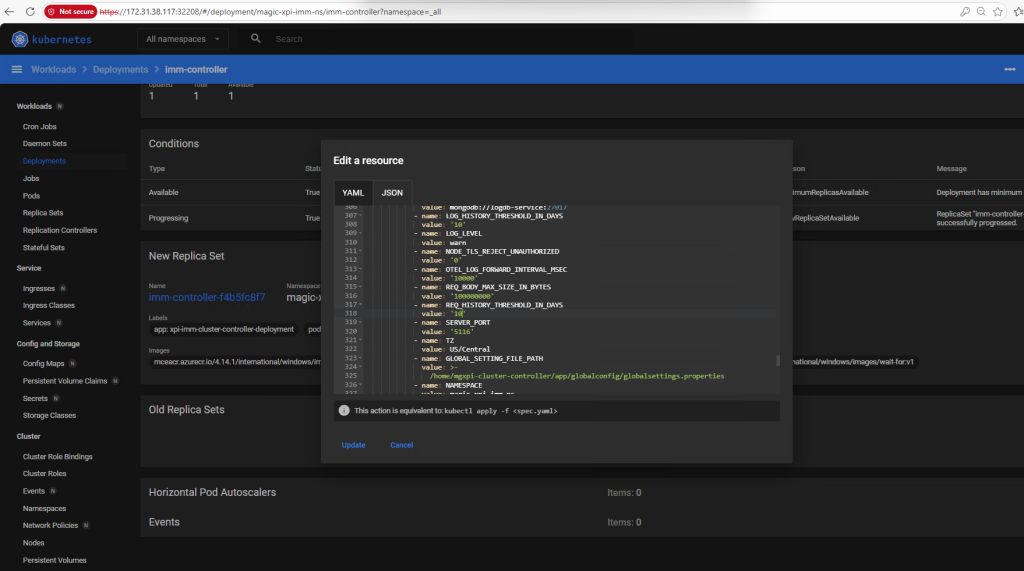
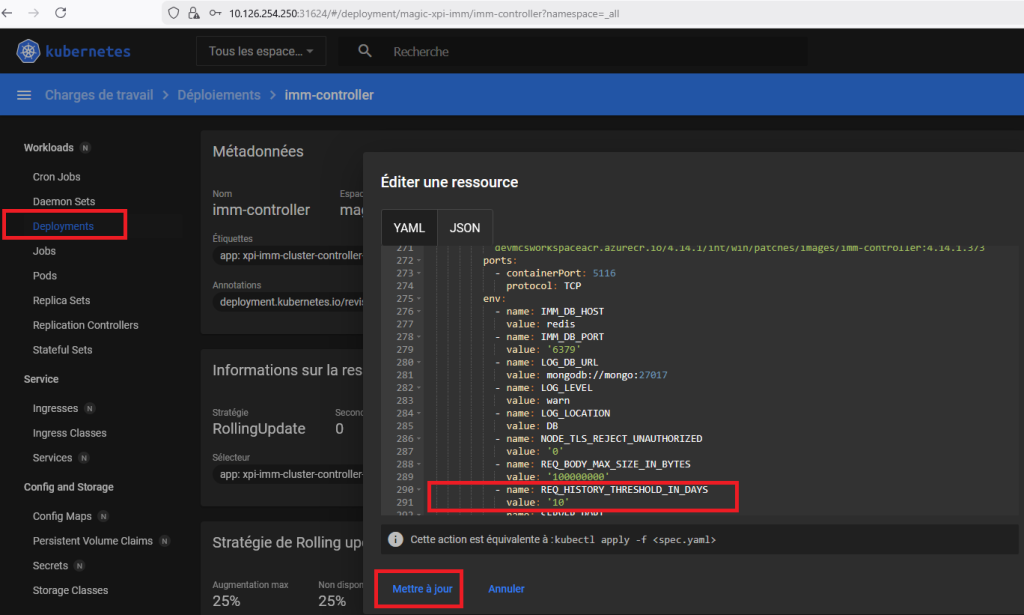
You can modify some parameters directly via the dashboard
If you want to update the « REQ_HISTORY_THRESHOLD_IN_DAYS » to 10 instead of 7 on the imm-controller pods, click on Deployments and update the environment variable like below and don’t forget to save
10/ Screen Captures for Full RedHat machine