Goal : Expose Magic xpi RESTFul API service through an MCP Proxy Server
Prerequisites :
- Install go
- Install npm
- Magic xpi RESTFul API Service OpenAPI yaml file with a Magic xpi project up and running
1/ Install an open api MCP server
Start powershell admin console
git clone https://github.com/jedisct1/openapi-mcp.git
cd .\openapi-mcp\
Create bin folder
New-Item -ItemType Directory -Force -Path .\bin | Out-Null
Build MCP server (stdio/http)
go build -o .\bin\openapi-mcp .\cmd\openapi-mcp
Build Interactive MCP Client
go build -o .\bin\mcp-client .\cmd\mcp-client
2/ Start MCP Server
3 ways to do it
- C:\openapi-mcp\bin\openapi-mcp.exe <directory of your magic xpi yaml file> (STDIO)
- C:\openapi-mcp\bin\openapi-mcp.exe –http=:9090 <directory of your magic xpi yaml file> (HTTP on port 9090)
- Start via powershell script
I’ve chosen to start the MCP Server via powershell script

3/ Start your MCP Inspector
Start another powershell admin window
npm install -g @modelcontextprotocol/inspector
Start the inspector console
npx @modelcontextprotocol/inspector « C:\openapi-mcp\bin\openapi-mcp.exe » « C:\openapi-mcp\openapi_localhost.yaml »


In my example, i call the « startOrder » endpoint

You should receive Status code 200 if your Magic xpi Flow has triggered successfully
4/ You can test your MCP server with MCP Client as well
Start on Powershell command line (admin), your MCP client
cd c:\openapi-mcp\bin
.\mcp-client.exe .\openapi-mcp C:\openapi-mcp\openapi_localhost.yaml
On the mcp prompt, you can enter : call startOrder {"requestBody":{"client_id":"saad","session_id":"12345"}}


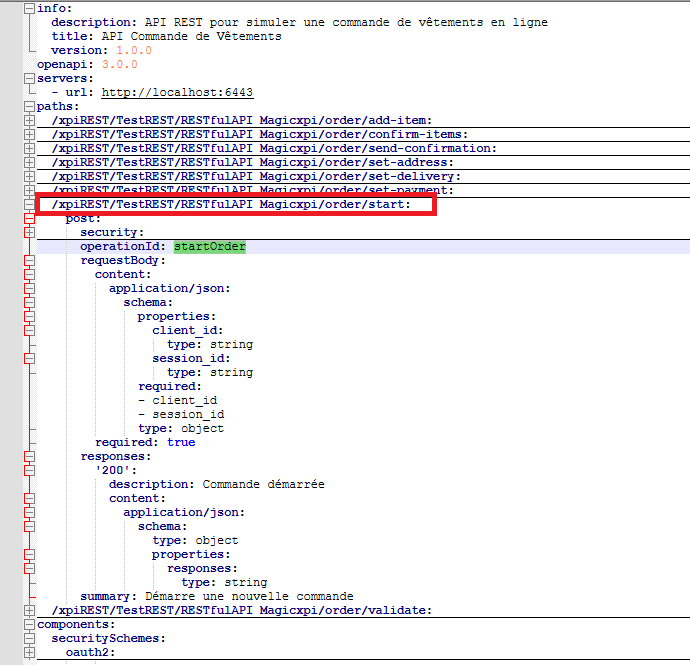
5/ Your Magic xpi yaml file should look like below
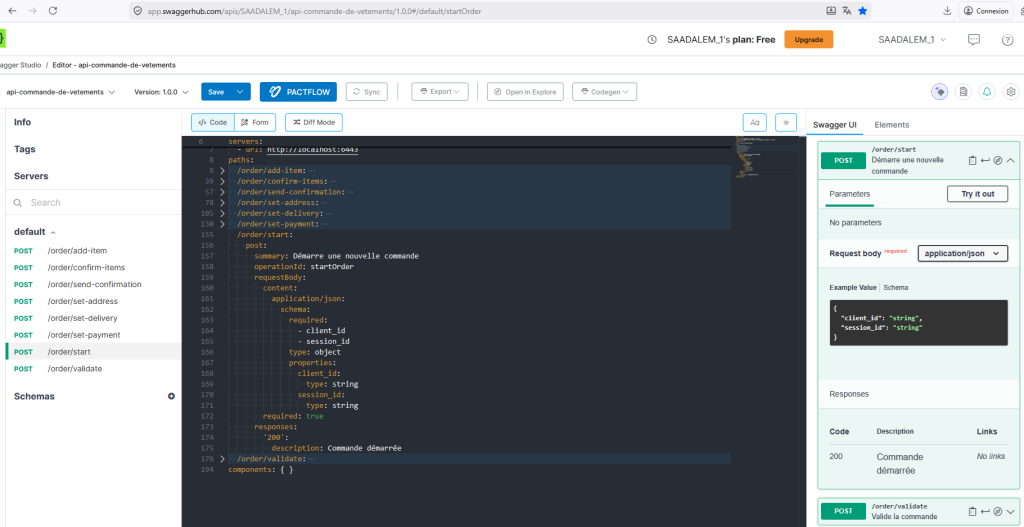
You can use the swaggerhub online tool to build your yaml file :
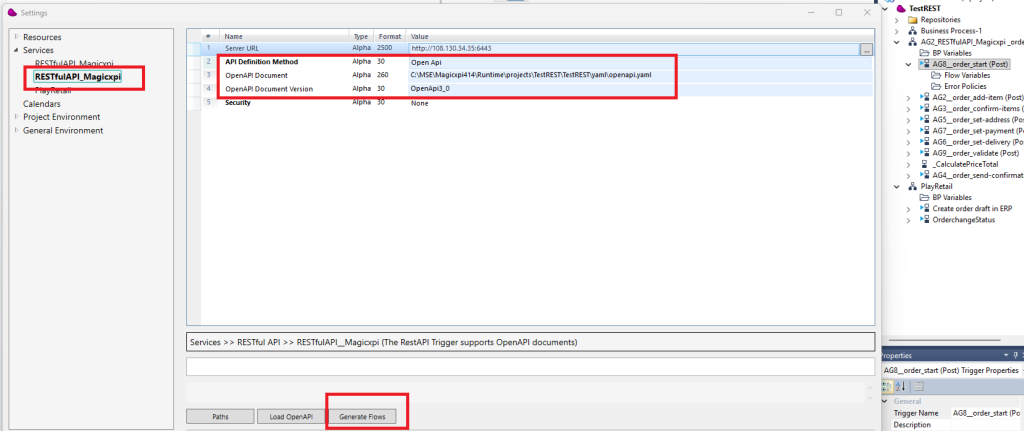
6/ Generate Magic xpi flows
In the Magic xpi project inside the services repository, create a new service (RESTFulAPI_Magicxpi) then you can load your yaml file and generate automatically the Skeleton of the the flows for each endpoint.
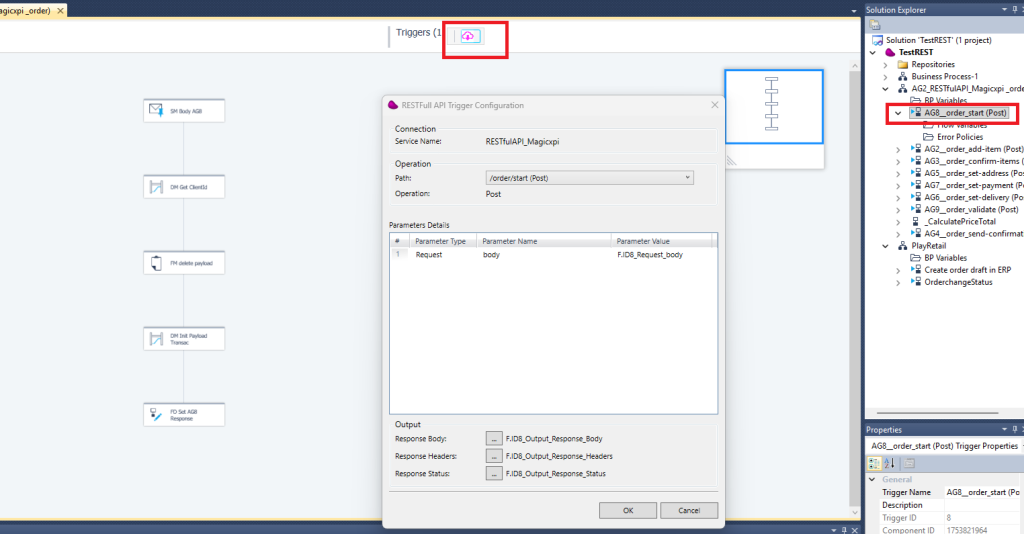
After generating the flows, you can adapt each flow design with your own logic .
7/ Each time you make a call from an mcp client, your Magic xpi Flow is triggered and you can control it using the Magic xpi Monitor

6/ From this point, you can consume Magic xpi services with any AI applications that support MCP protocol (Claude, Gemini, ChatGPT, Copilot, Le Chat, …) in addition with standard REST clients.
7/ Documentations